Measuring ECG with Apple Watch
Start, follow and stop an ECG recording with the Kardi Ai chest strap directly from your Apple Watch. A step-by-step guide, including what your iPhone shows during the measurement.
If you have an iPhone and an Apple Watch, you can start, follow and stop an ECG recording with the Kardi Ai chest strap directly from your watch. During the measurement the chest strap connects to the watch, so you do not need to keep your phone with you.
Measuring from the watch is available only for iPhone and Apple Watch. This option is not available on Android phones.
Before you start
- You have the Kardi Ai
 app on your iPhone, you are signed in and your chest strap is paired in it.
- The Kardi Ai app is installed on your Apple Watch.
- Bluetooth is turned on on your watch and the watch is charged.
- When you open the app on your watch for the first time, allow access to Health (workouts). Without this permission the recording cannot be started.
The watch takes over your sign-in and the code of your chest strap from your iPhone automatically – there is nothing else to set up.
The general recommendations on when and how often to measure are the same as for measuring with your phone – see Measuring ECG with Kardi Ai.
Measurement procedure
-
Put on the Kardi Ai chest strap
For correct fastening, continue to How to Put on the Chest Strap. -
Open the Kardi Ai app on your Apple Watch
The watch searches for your chest strap nearby. As soon as it finds it, it shows Ready – Start new ECG recording with the code of your strap. Tap Start. -
Connecting the chest strap
The watch connects to the chest strap. If you want to stop connecting, tap Cancel. -
Choosing the recording length
Once connected, the watch shows the battery level of the chest strap. Choose the length of the recording – 1, 2, 3 or 4 hours (scroll the screen to see more options). The recording starts as soon as you choose the length. -
ECG recording in progress
The watch shows a live view of your ECG, your heart rate and the chosen recording length (e.g. Planned 1h). When the chosen time is up, the recording stops and is saved automatically. -
Recording health problems (optional)
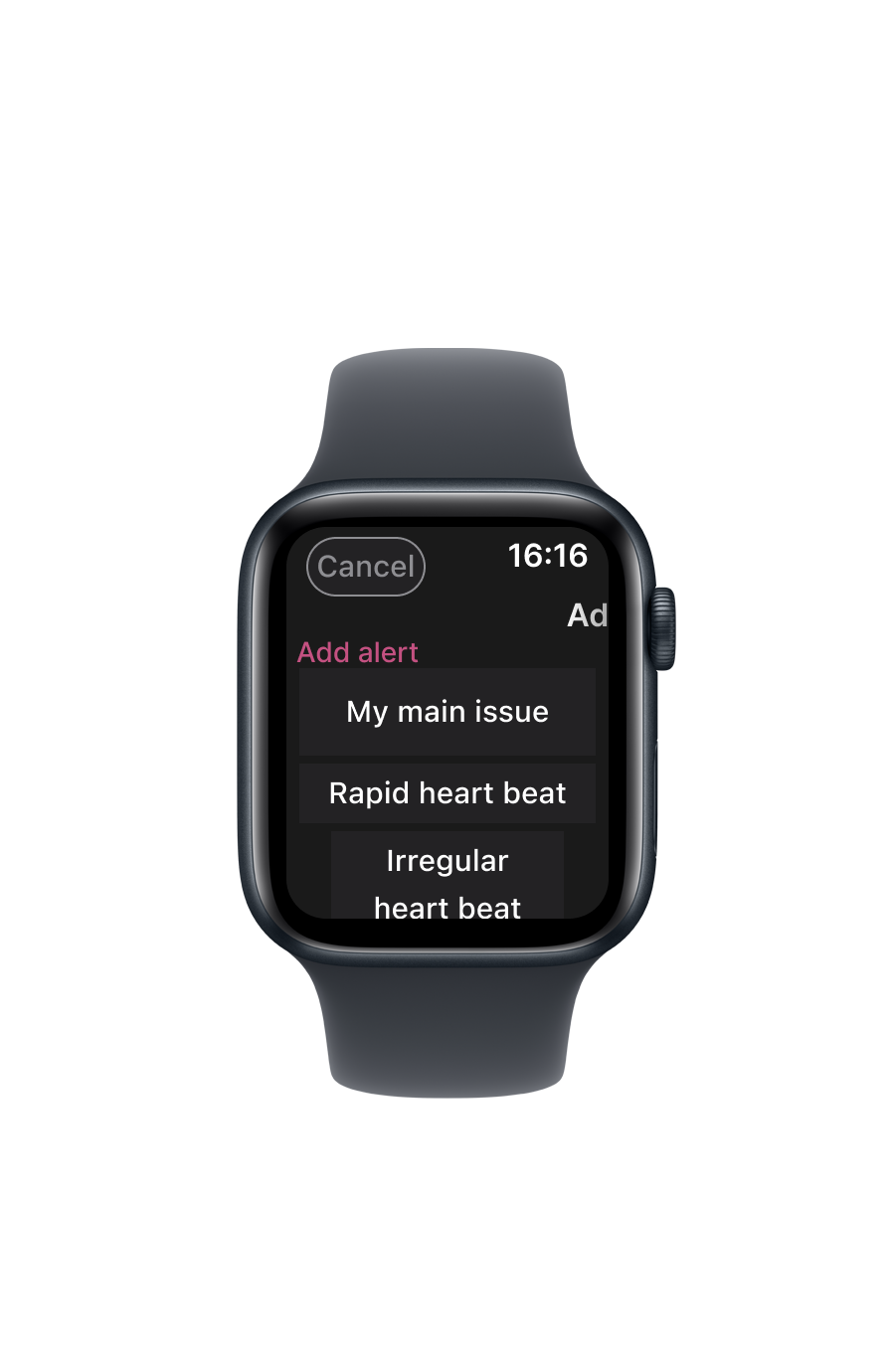
If you feel any health problems during the measurement, tap + Alert and choose from the list what you are feeling right now (e.g. Rapid heart beat or Irregular heart beat). Swipe the recording screen sideways to see the alerts you have added. The marked problems will be shown in the ECG recording report.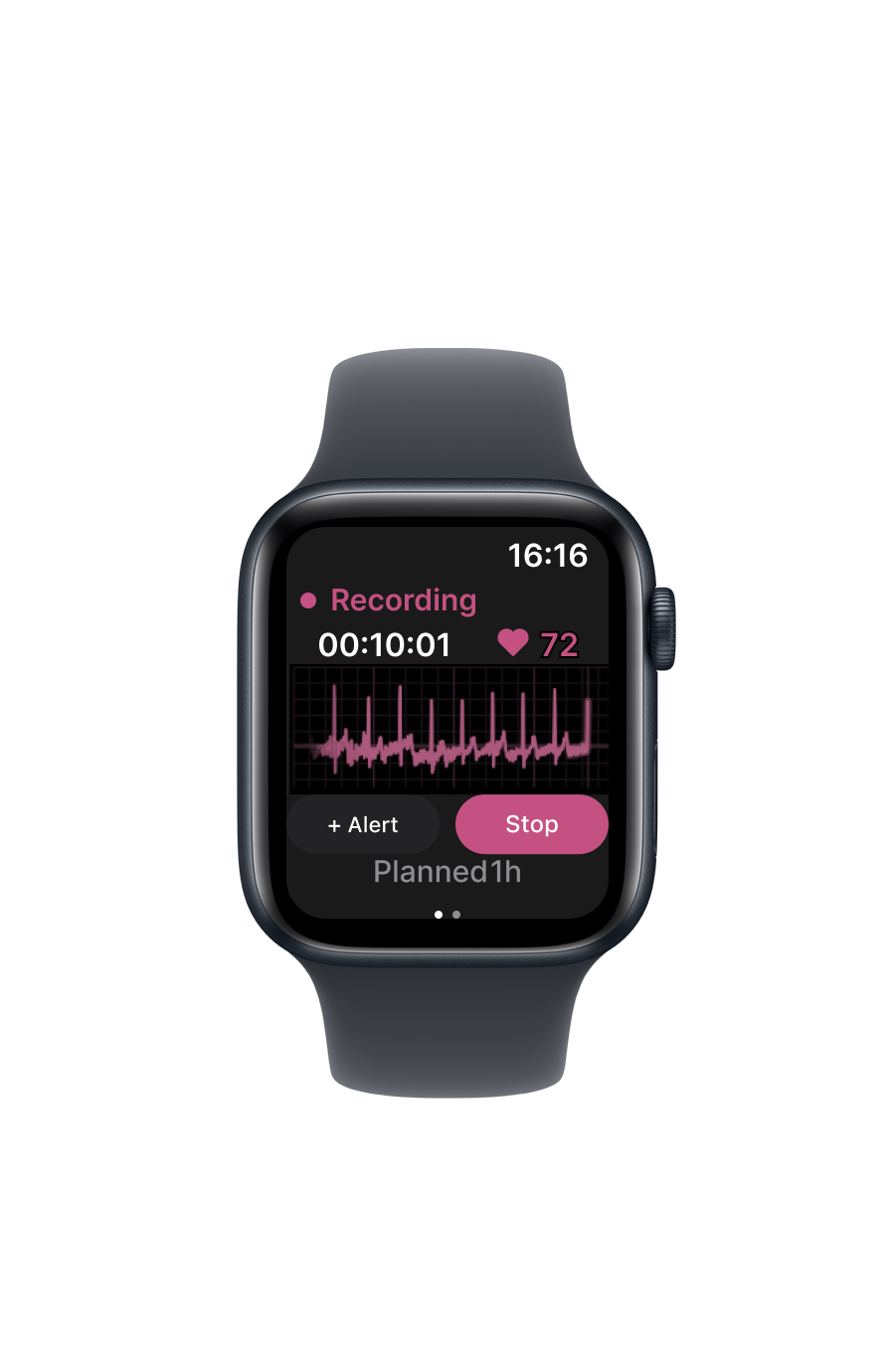
-
Stopping the recording early (optional)
If you want to end the measurement before the chosen time is up, tap Stop and confirm with Stop recording. The data measured so far will be saved. -
Recording saved
The watch confirms that the recording was saved and shows its length. Tap Done.
Keep the chest strap close to the watch for the whole recording. If the connection between the strap and the watch is lost, the recording ends – the data measured so far stays saved. To continue, start a new recording.
To keep the ECG recording running continuously even with the display off, the watch runs it as a workout – much like when you start, for example, a run. During the measurement you will therefore see the workout-in-progress icon on the watch face, and the watch may count the measurement time towards your activity. This is expected and has no effect on the ECG recording.
Transferring the recording to iPhone
The watch saves the finished recording and transfers it to your iPhone automatically as soon as the phone is within range. The iPhone app then sends the recording for evaluation – the phone needs an internet connection for this.
To see recordings still waiting for transfer, swipe up on the watch home screen (Pending sync). Tap Retry sync to start the transfer again. When everything has been transferred, the watch shows All data synced.
You will then find the finished recording as usual in the iPhone app on the Recordings tab, where its colour according to the evaluation traffic light appears once it has been evaluated.
What your iPhone shows during the measurement
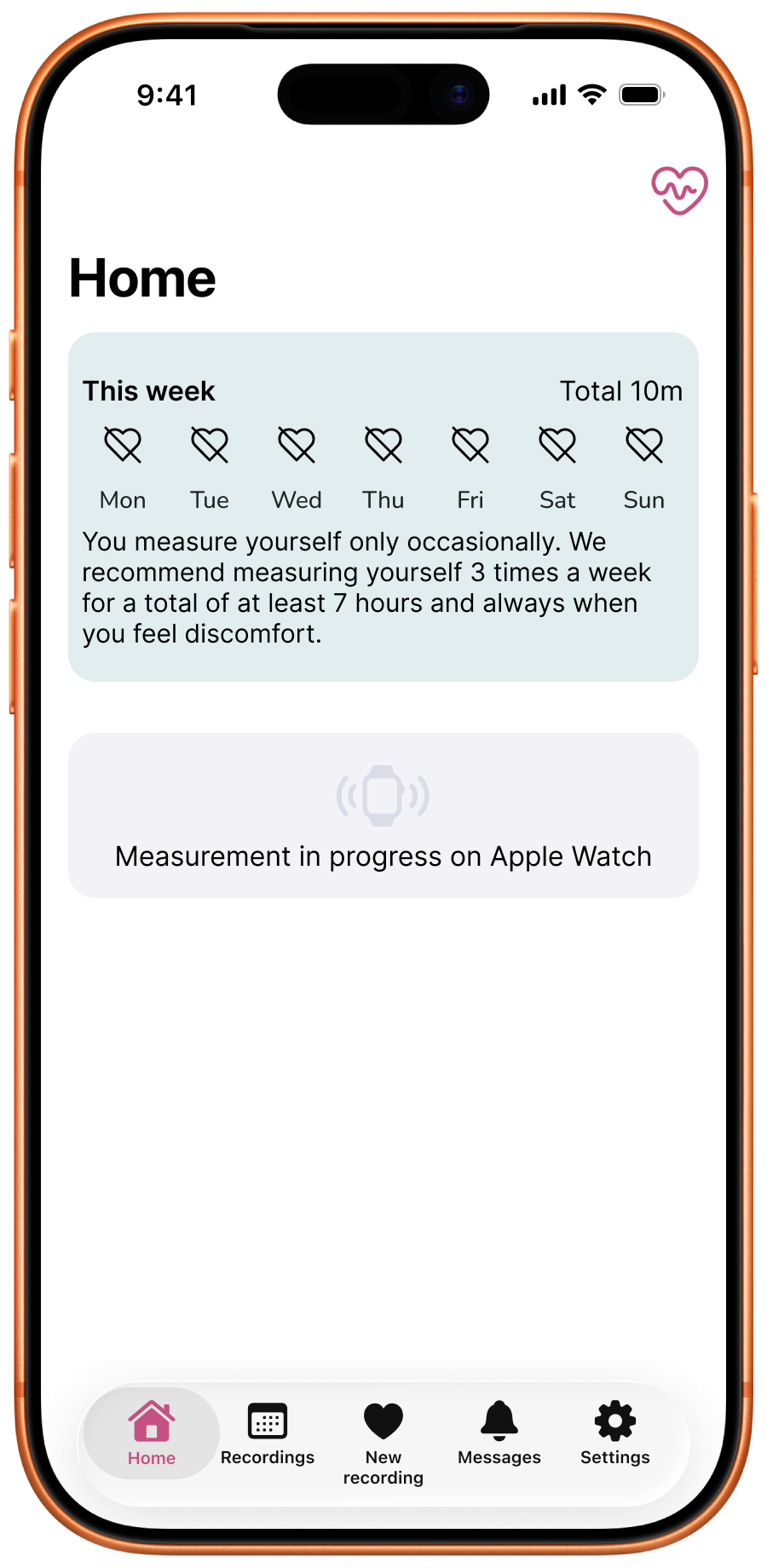
While a recording is running on the watch, the Kardi Ai app on your iPhone shows Measurement in progress on Apple Watch on both the Home and the New recording tabs.
You cannot start a new measurement on the iPhone during this time – first finish or stop the recording on your Apple Watch.
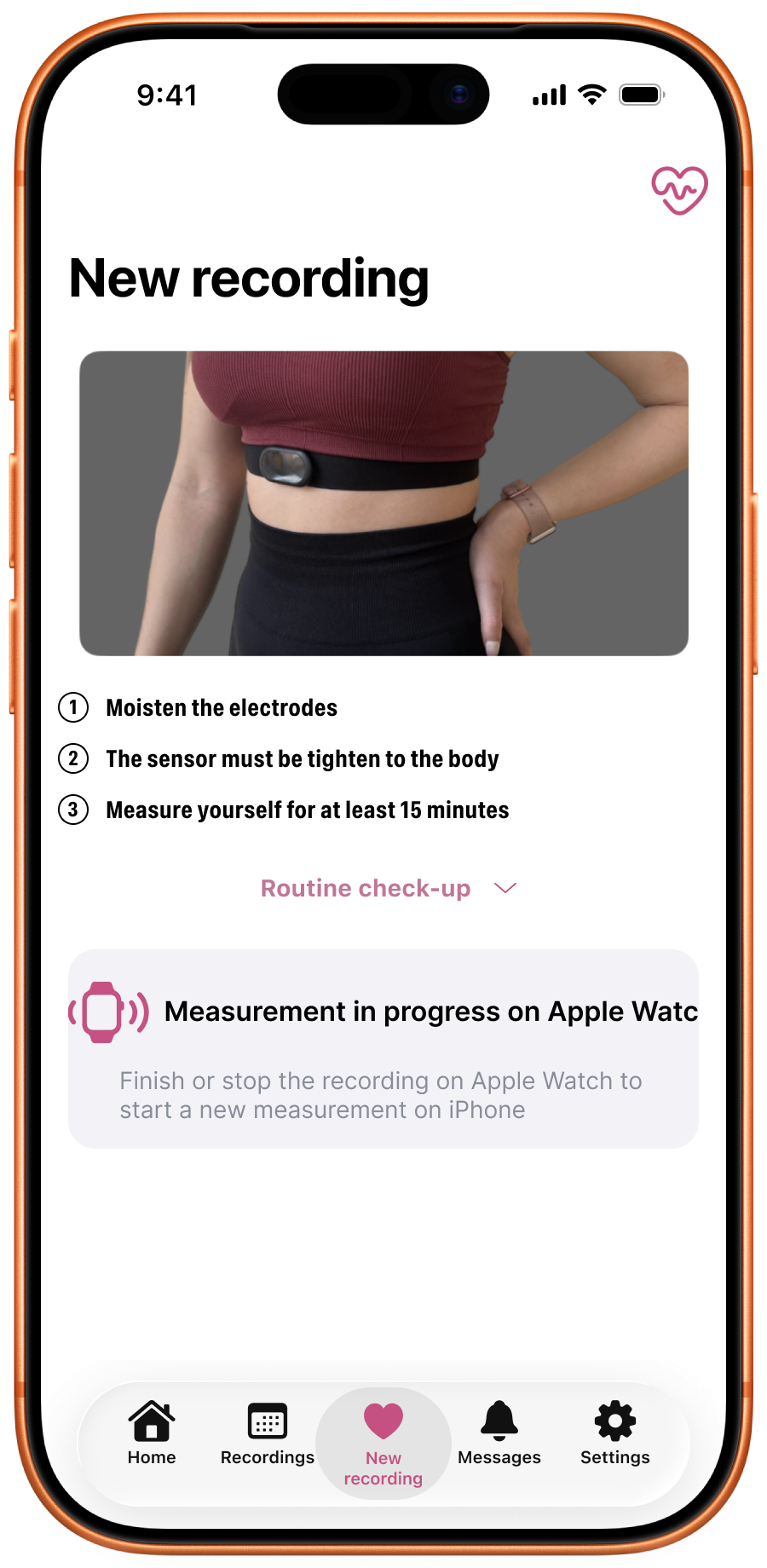
It also works the other way round: when you start a measurement on your iPhone, the watch shows Live from iPhone with your current heart rate.
When the watch is not ready
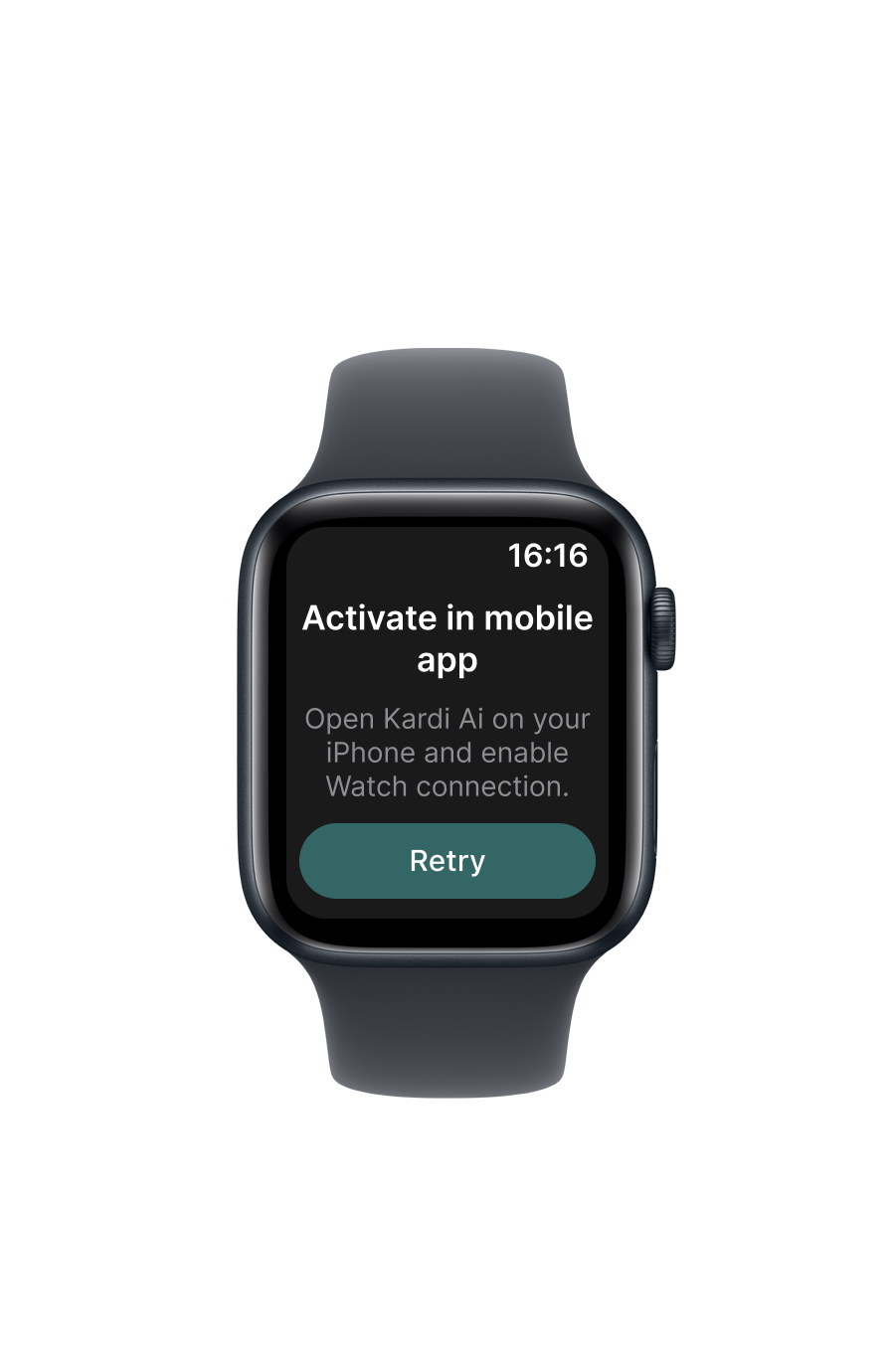
Activate in mobile app
The watch does not have a current sign-in from your iPhone – for example, you have not signed in on your phone yet, or the watch has not connected to your iPhone for more than 24 hours. Open the Kardi Ai app on your iPhone and tap Retry on the watch.
Searching for belt / Belt not found
The watch has not found your chest strap nearby. Put on the moistened strap and keep it close to the watch. The Start button appears as soon as the watch finds the strap.
No belt set up
You do not have a chest strap paired in the iPhone app yet – see Connecting the chest strap with the app.
Bluetooth is off
Turn on Bluetooth on your watch.
Connection failed
Check that the strap is on, moistened and close to the watch, and try connecting again.
Contact Kardi Ai customer support
☎️ +420 779 998 100
✉️ support@kardi.ai